This article is to help you print barcodes either in-store or at home.
In-store barcode printing is ONLY permitted Monday through Friday 11:00 AM to 8:30 PM. All vendors must be completed with their task BEFORE the store closes.
Step 1: Log into the vendor portal
Step 2: Go to your products tab

Step 3: Click the checkboxes next to the products you need to print barcodes for
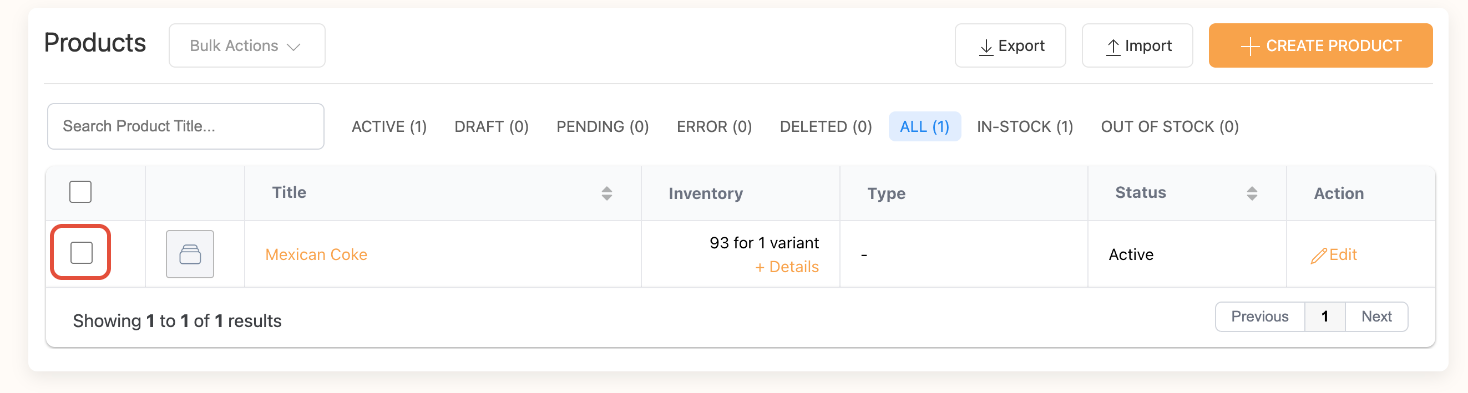
You can use the checkbox at the top of the column to select ALL products.
Step 4: Scroll to the top of the page and click the "Bulk Actions" button

This button will only be available to click once you have items selected.
Step 5: Click on "Print Barcodes"
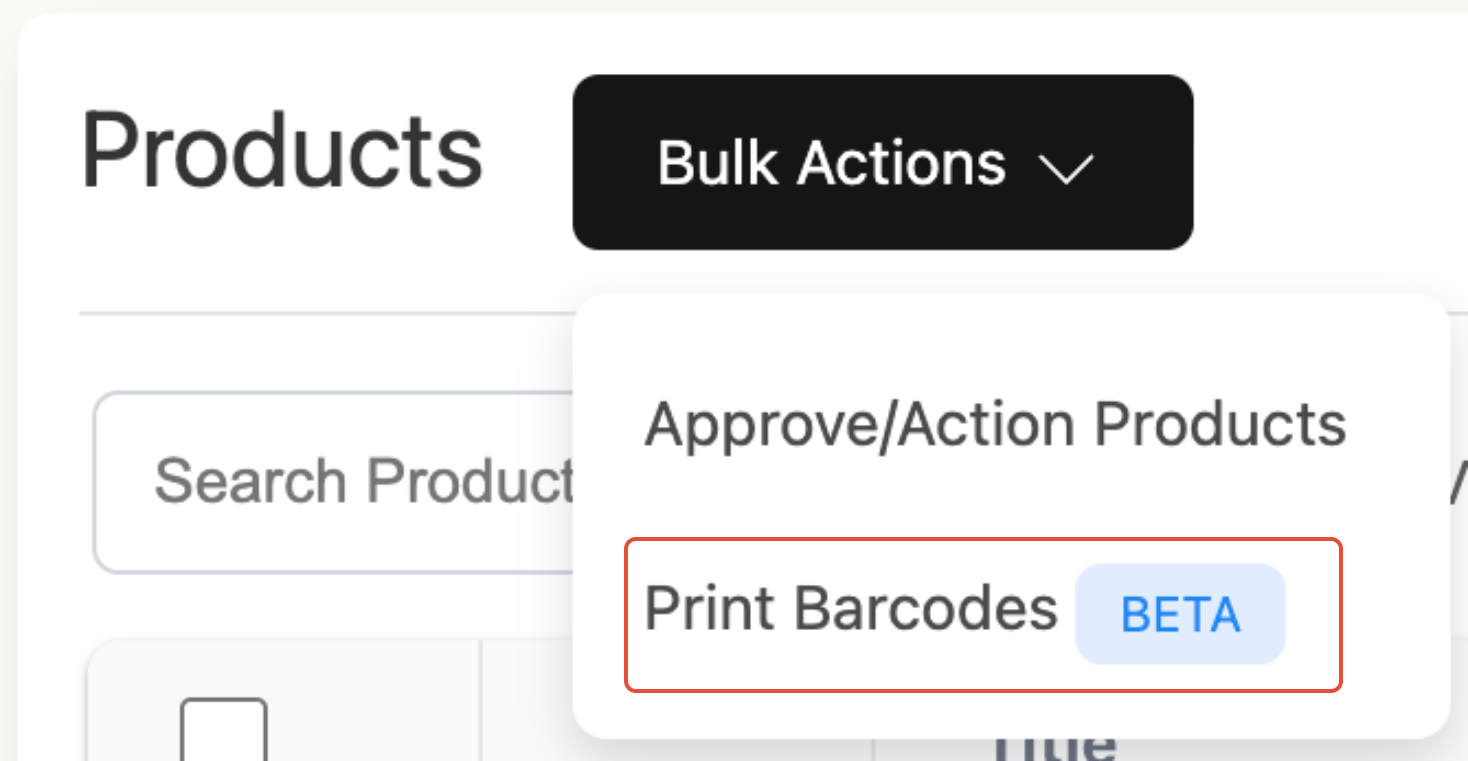
Step 6: Select your label type
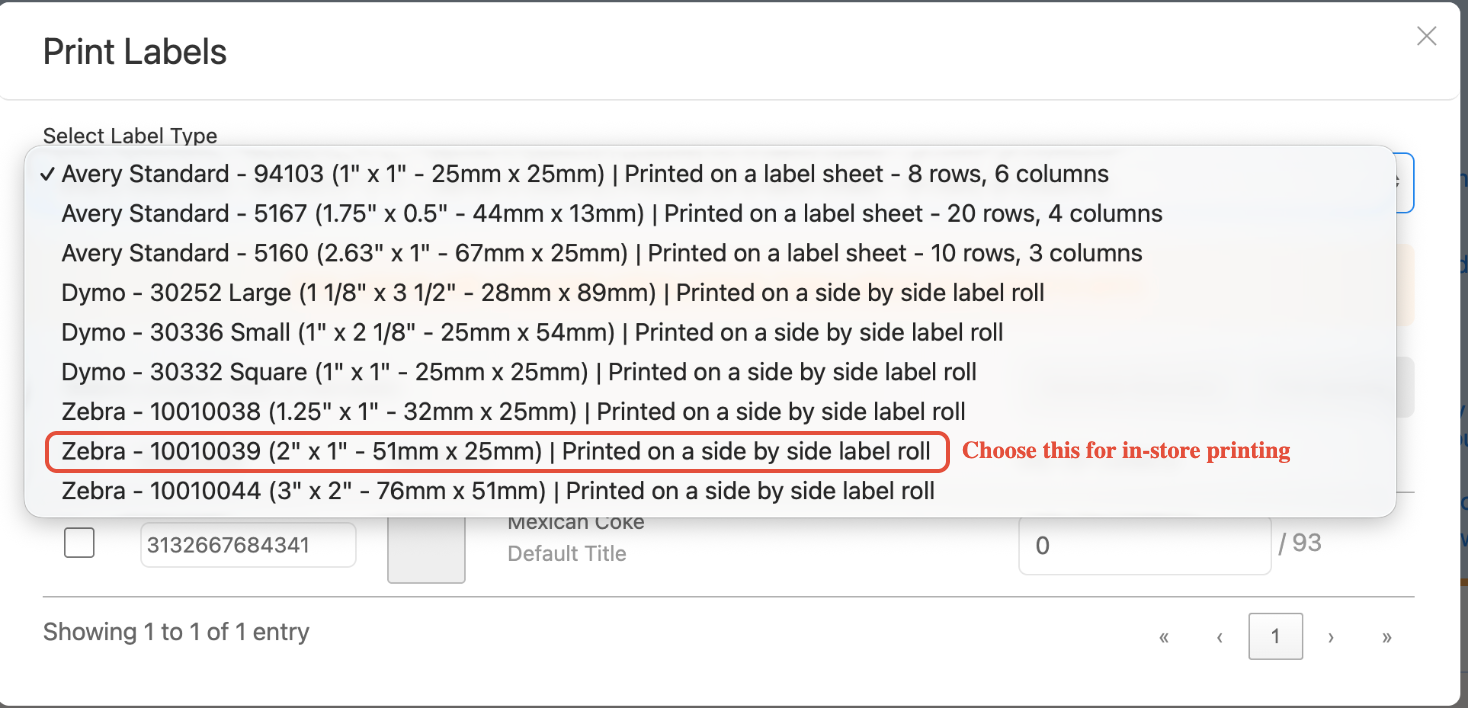
If you're printing from home, you can use a regular printer and purchase Avery labels.
Step 7: Click the checkboxes next to the items, this step will tell you if you need to generate barcode numbers.

If a barcode number is missing (yellow) you will click "Generate Barcodes" (yellow) you will need to do this before proceeding with printing.
Step 8: You will now enter the amount of labels you need for each product.

Forgot how many you have? The number next to the box tells you how many of each item you entered into your inventory. You can always print more or less as well.
Step 9: You have completed all necessary steps, you can now click the "Print barcode" button

Step 10: Open the PDF, once you click "print barcode" a PDF will automatically download. Once the download is complete you will open the PDF and click "print"
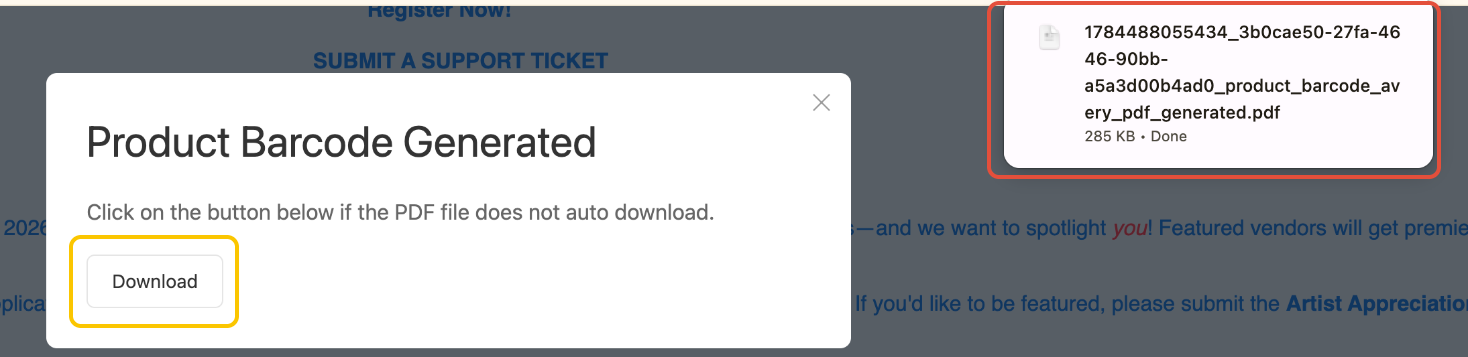
If the PDF (red) does NOT appear you can click on "download" (yellow) to redownload the PDF file.
Was this article helpful?
That’s Great!
Thank you for your feedback
Sorry! We couldn't be helpful
Thank you for your feedback
Feedback sent
We appreciate your effort and will try to fix the article